
For most aging parents, the best communication tools fall into four categories: a simple video-calling device or auto-answer frame, a smart display like the Amazon Echo Show, a senior-friendly tablet such as an iPad, and a big-button phone like the Jitterbug. Research consistently shows that purpose-built video devices reduce loneliness and social isolation among older adults, and the right pick depends almost entirely on your parent's biggest barrier, whether that's fading vision, hearing loss, memory challenges, or plain discomfort with technology. Helping-mom covers all of these scenarios in plain language, and this guide walks you through every option so you can choose with confidence.
Table of Contents
- What are the best communication tools for elderly parents at a glance?
- How do you choose the right communication tool for your parent?
- What accessibility and setup steps actually make a difference?
- Which tool works best for each caregiving situation?
- What do communication tools for seniors typically cost?
- How do you protect your parent's privacy and safety on these devices?
- Key Takeaways
- What caregivers often underestimate about staying connected
- How Helping-mom can support your setup and follow-through
- FAQ
What are the best communication tools for elderly parents at a glance?
The table below maps each tool to the factors that matter most when you're the one setting it up and supporting it from a distance.
| Tool | Ease of use | Best for | Setup & management | Connectivity | Typical cost | Key extras |
|---|---|---|---|---|---|---|
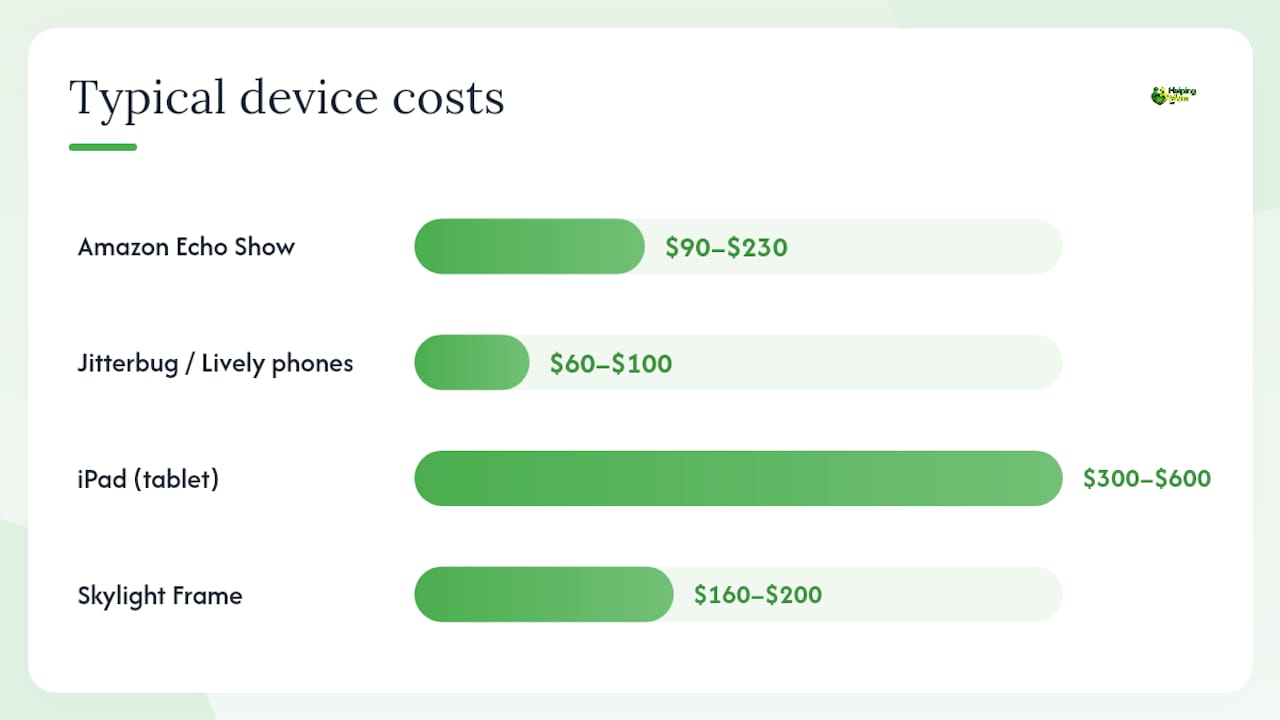
| Amazon Echo Show | Very easy (voice-first) | Voice-first households, reminders | Family-managed via Alexa app | Wi-Fi | a device priced between about ninety and two hundred thirty dollars | Drop-in video calls, reminders, large display |
| GrandPad | Extremely easy (one-touch) | Dementia, very low tech comfort | Vendor-managed | 4G + Wi-Fi | — | Curated contacts, no spam, photo sharing |
| Jitterbug / Lively phones | Easy (big buttons, speed-dial) | Low vision, emergency needs | Family or self-managed | 4G cellular | a device priced between sixty and one hundred dollars, plus a cellular plan | Urgent Response, large text, simple menu |
| iPad (tablet) | Moderate (customizable) | Tech-comfortable seniors, families | Family-managed | Wi-Fi + optional cellular | a device priced from the low three hundreds up to six hundred dollars | FaceTime, apps, large screen |
| Skylight Frame | Very easy (auto-display) | Passive connection, photo sharing | Family-managed via app | Wi-Fi | a device priced from about one hundred sixty up to two hundred dollars | Auto-displays photos and messages sent by family |
| FaceTime / iMessage | Easy within Apple ecosystem | Apple-only families | Family-managed | Wi-Fi or cellular | Free (device required) | High video quality, seamless on iPhone/iPad |
| Moderate | Cross-platform families | Family-managed | Wi-Fi or cellular | Free | Video, voice, text; works on Android and iPhone | |
| Zoom | Moderate | Group calls, multi-family | Family-managed | Wi-Fi or cellular | Free (basic) | Large-group video, familiar to many seniors |
| Facebook Messenger | Moderate | Seniors already on Facebook | Family-managed | Wi-Fi or cellular | Free | Video, voice, text; large user base |
Apps like Zoom, Messenger, and WhatsApp are widely recommended for keeping seniors connected, and each works across both Android and iPhone. FaceTime and iMessage, however, are Apple-only, so every family member needs an iPhone or iPad for them to work reliably. GrandPad and Jitterbug are the two options where a vendor handles most of the complexity, which matters a lot when you live far away or can't visit often.
How do you choose the right communication tool for your parent?
Start with your parent's single biggest barrier. That one factor narrows the field faster than any spec sheet.
- Vision problems: Prioritize large screens (iPad, Echo Show 15, Jitterbug Flip2) and senior-focused launchers with high-contrast themes and large fonts.
A simple three-step decision flow: first, identify the barrier above. Second, check whether your family is all-Apple or mixed-platform, since that determines whether FaceTime is a realistic option. Third, decide who will handle ongoing support. Matching the device to the person's actual ability rather than the most feature-rich option is what makes the difference between a device that gets used and one that collects dust.
Pro Tip: Before you buy anything, spend 10 minutes walking your parent through the interface on your own phone or laptop. Watch where they hesitate. That hesitation tells you more than any review.
What accessibility and setup steps actually make a difference?
The wins are usually simple: larger text, fewer taps, and a home screen with only the contacts your parent actually calls.
Visual tweaks
Increase text size to the largest readable setting. On an iPad, go to Settings > Display & Brightness > Text Size and drag the slider all the way up. On Android, use Display > Font Size. High-contrast mode helps too, especially for seniors with early macular degeneration.
Hearing tweaks
Enable visual or vibration alerts alongside audio ringtones. On iPhones, LED Flash for Alerts (Settings > Accessibility > Audio/Visual) gives a visible cue when a call comes in. For Echo Show, raise the default volume and set a distinctive ringtone.
Simplify the home screen
Remove every app your parent doesn't need. On an iPad, use Guided Access or Screen Time to lock the device to two or three apps. On GrandPad, the vendor handles this for you. Customizing accessibility settings and securing Wi-Fi are the two steps that most improve long-term adoption and reduce fraud risk.
Which tool works best for each caregiving situation?
For each common scenario, here's the best category and why.
- Dementia or memory loss: Auto-answer frames (Skylight Frame) or GrandPad. Video calling on a large screen with auto-answer reduces the steps needed to join a call, which is exactly what someone with memory challenges needs.
- Staying social with grandkids: WhatsApp or FaceTime on an iPad. These messaging apps are widely used and practical once set up, and grandkids already have them.
For Apple families, FaceTime is the path of least resistance. For mixed-platform families, WhatsApp or Zoom covers everyone. When your parent struggles with any smartphone interaction, a single-purpose device (auto-answer frame or GrandPad) beats a multi-purpose tablet every time. Helping-mom's guide to technology for aging parents covers smart-home options alongside communication tools if you want to go deeper.
What do communication tools for seniors typically cost?
Some devices are one-time purchases; others carry monthly fees that add up quickly.
| Category | Typical one-time cost | Typical monthly fee |
|---|---|---|
| Smart displays (Echo Show) | — | free to use (Wi-Fi required) |
| Senior tablets (iPad) | — | a low monthly fee for cellular optional |
| Managed senior tablets (GrandPad) | free to use device | — |
| Big-button phones (Jitterbug/Lively) | — | a cellular plan costing twenty to thirty-five dollars per month |
| Auto-answer frames (Skylight Frame) | — | free to use (Wi-Fi required) |
| Standard apps (WhatsApp, Zoom, Messenger) | free to use | free to use |
Retail options like large-button phones and simplified smartphones are widely available, and pricing varies by carrier plan and device generation. A refurbished iPad is a practical low-cost entry point for families who want flexibility without the managed-service fee. If multiple siblings want access to the same device or account, check whether a family-wide app subscription (like Apple One) reduces the per-person cost.
Pro Tip: Most carriers offer a 30-day return window. Buy the device, set it up, and test it with your parent before committing. A managed plan with monthly fees is worth it if it gets used; it's not worth it if the device sits on a shelf.
How do you protect your parent's privacy and safety on these devices?
Basic security is quick to set up but often skipped entirely.
Secure the home Wi-Fi with a strong, unique password and make sure the router firmware is current. On managed devices like GrandPad, the vendor handles security; on open platforms like an iPad or Echo Show, you'll need to do this yourself.
Enable contact whitelists wherever the platform allows. On GrandPad, only approved contacts can reach your parent. On an iPad, you can use Screen Time's Communication Limits to restrict calls and messages to your approved list. This single step dramatically reduces exposure to phone scams and spam calls, which disproportionately target older adults.
- Set up a fallback plan: keep a basic landline or charged backup phone in the home in case Wi-Fi goes down.
- Store device login credentials, vendor support numbers, and the Wi-Fi password in a shared family document (a password manager like 1Password works well for this).
- Know how to remotely access or reset the device: iPad via iCloud, Echo Show via the Alexa app, GrandPad via the family web portal.
Pro Tip: Write the Wi-Fi password and the vendor's support number on a card taped inside a kitchen cabinet. When something breaks at 8 PM, you'll be glad it's there.
Key Takeaways
The most effective communication setup for an aging parent pairs a simple, low-friction device with consistent family follow-up over at least four weeks.
| Point | Details |
|---|---|
| Match device to the barrier | Vision, hearing, memory, or tech comfort determines the right category before any other factor. |
| Auto-answer wins for dementia | GrandPad and auto-answer frames remove steps and reduce missed calls for parents with memory challenges. |
| Staged onboarding builds habit | A four-week rollout with one new feature per week prevents overwhelm and improves long-term use. |
| Security is a quick win | Contact whitelists and a strong Wi-Fi password are the two steps that most reduce scam exposure. |
| Helping-mom offers guided setup | Paid consultations and caregiving resources from Helping-mom support families who want hands-on help. |
What caregivers often underestimate about staying connected
Most articles focus on which device to buy. The harder part is what happens after you hand it to your parent and drive home.
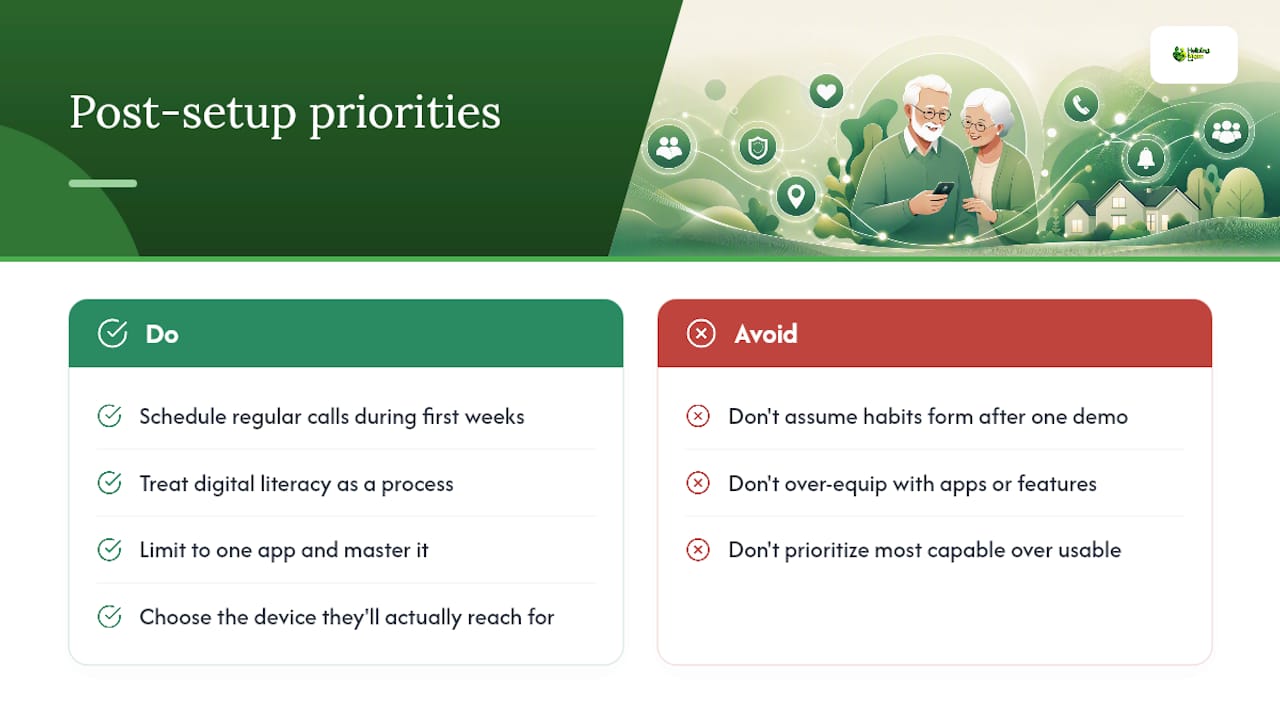
The families I see struggle most aren't the ones who picked the wrong device. They're the ones who set it up once, showed their parent how it works, and then assumed the habit would form on its own. It rarely does. Digital literacy is a process, not a one-time event, and the first few weeks of consistent, scheduled calls are what turn a device into a genuine lifeline.
There's also a tendency to over-equip. A parent who is overwhelmed by too many apps or features will quietly stop using all of them. One app, used confidently, is worth more than five apps used reluctantly. The goal isn't to give your parent the most capable device. It's to give them the one they'll actually reach for. That's a meaningful distinction, and it's worth sitting with before you spend a dollar.
For families navigating isolation alongside communication, Helping-mom's guide on helping an isolated elderly parent feel connected goes deeper on the emotional side of this.
How Helping-mom can support your setup and follow-through
Setting up a communication device for your parent is one thing. Making sure it actually gets used, week after week, is another. Helping-mom offers paid one-on-one Zoom consultations for families who want a guided setup, accessibility customization, and a clear plan for follow-up. A session typically covers device configuration, contact whitelisting, a short family training walkthrough, and a follow-up check-in to troubleshoot what isn't working.
If you're also thinking about the broader picture of your parent's safety at home, the Practical Guide: How to Make Home Safer for Seniors pairs well with any communication setup. Good connection and a safe home reinforce each other. When you're ready to take the next step, book a consultation directly through Helping-mom's website.
FAQ
What is the easiest communication device for a senior with dementia?
GrandPad and auto-answer video frames are the easiest options for seniors with dementia because they require no navigation, no passwords, and no steps to answer a call.
Do seniors need a smartphone to video call family?
No. An Amazon Echo Show, GrandPad, or Skylight Frame all support video or photo sharing without a smartphone, and they're often easier for seniors who find phones frustrating.
What is the best free video calling app for elderly parents?
FaceTime is the best option for Apple-only families; WhatsApp and Zoom work across both Android and iPhone at no cost and are widely used for keeping seniors connected.
How long does it take for an elderly parent to learn a new communication device?
Most seniors become comfortable with one core feature (a video call or photo display) within two to four weeks when a family member calls consistently and at a predictable time.
How do you protect an elderly parent from phone scams on these devices?
Enable a contact whitelist so only approved family members can reach your parent, secure the home Wi-Fi with a strong password, and choose a vendor-managed device like GrandPad if you want the platform to handle filtering automatically.